Sessions
This page gives admins a live view of who is currently logged in to priint:suite. You can monitor active users, check license usage, and terminate sessions when needed.
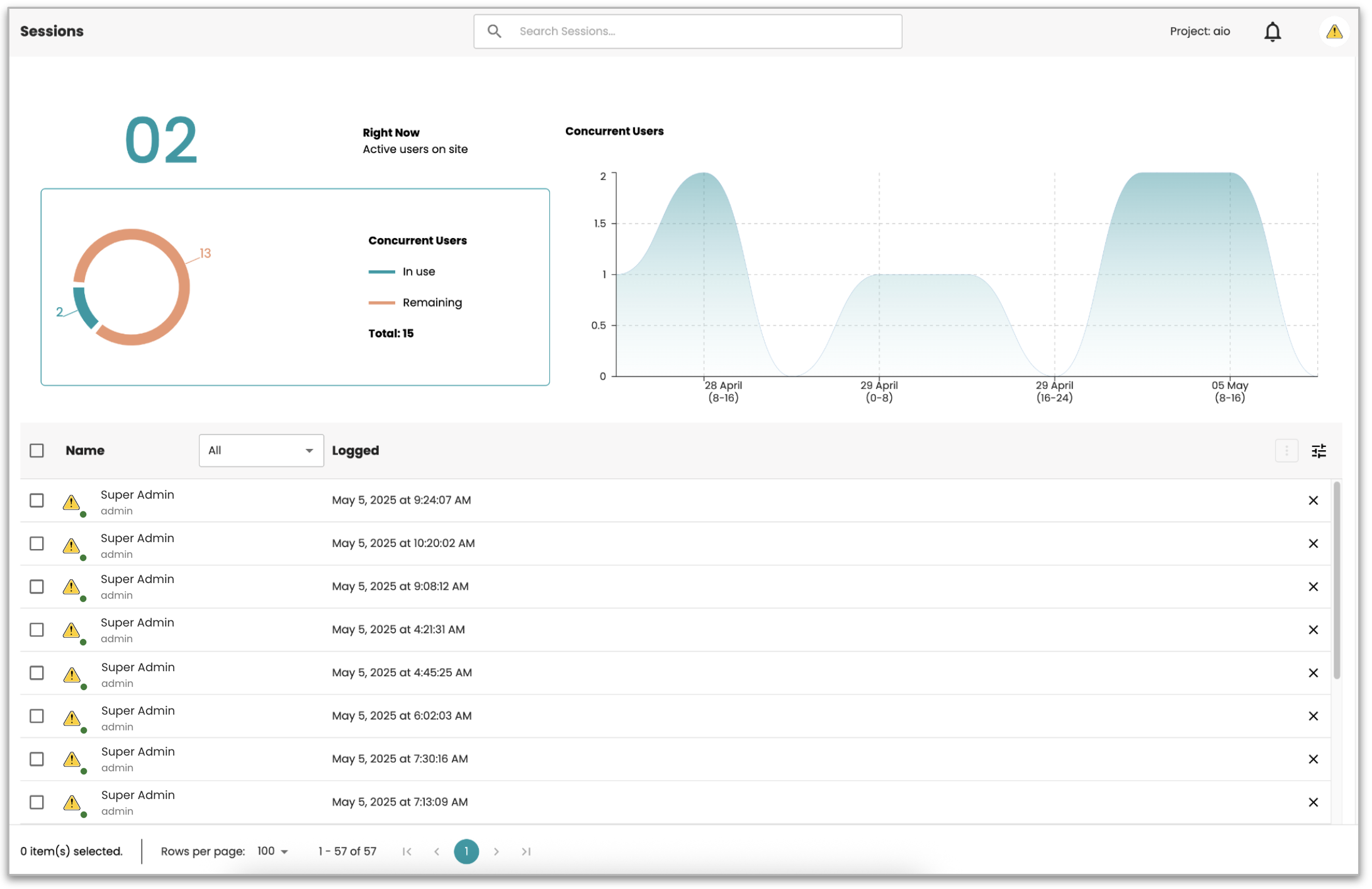
What you see on this page
Pie chart: shows how many users are logged in right now. It covers both priint:suite web app sessions and InDesign plugin sessions. AdminUI sessions are not counted here. The chart also shows your license capacity, how many seats are in use and how many are still available.
Timeline chart: shows user traffic over the last 7 days. The data is grouped into 8-hour buckets. Each point on the chart shows the peak number of concurrent sessions within that time window.
Sessions table: lists all active sessions. This includes both client types: the priint:suite web app and the InDesign plugin. Both use the same authentication flow, so they appear together in one combined list. Pure SSO sessions that do not have an authorized priint:suite session are not shown.
How sessions work
Session expiry
A session ends in one of three ways:
- Idle timeout: If a user has no activity for 10 hours, the server ends the session automatically.
- Manual logout: The user logs out from the application themselves.
- Admin termination: An admin terminates the session from this page, or the server is restarted. The 10-hour timeout is a fixed server-level setting. There are no visible "idle" or "inactive" states shown in the table. Once a session expires, it is removed from the list automatically.
Terminating a session
You can terminate any user's session by clicking the X button next to their name. The system will ask you to confirm before it completes the action.
You can also select multiple sessions and terminate them all at once.
A few things to know:
- You cannot terminate your own session. The X button will be inactive for your own account.
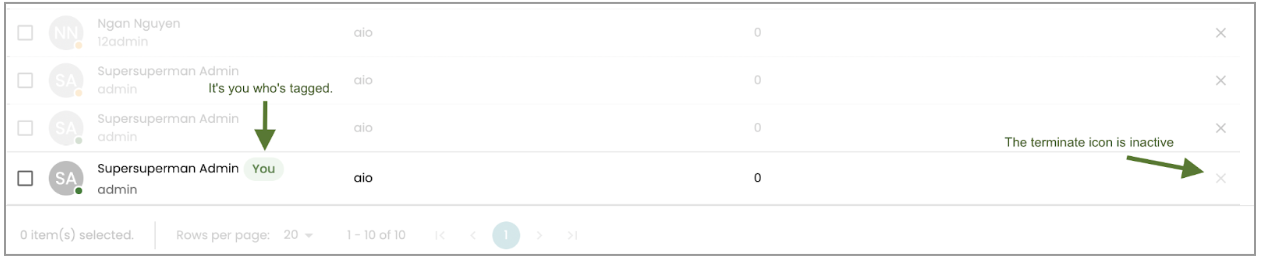
- Terminating an InDesign session works the same way as terminating a web app session. The server invalidates it immediately. The InDesign plugin detects this on its next server call and prompts the user to log in again. Any document locks held by that session are released automatically.